大家好,我是小码哥。
最近折腾 Claude 订阅,使用的是苹果订阅,但 Claude 封号,申请退款后礼品卡还在苹果商店,只能消费,不能原路退回,也不能提现,非常鸡肋。
于是我想着开一个美区 PayPal,这样退款就能原路退回到 PayPal,也不用买礼品卡了,直接使用 PayPal 就能付款订阅了。
PayPal 是美区 Apple 账户支持的付款方式之一,订阅也可以使用其他付款方式。 比如银行卡、Apple 账户余额,都在官方列表中。
下面我就把美区 PayPal 的注册、绑卡和账户验证流程分享一下。
注册美区 PayPal
准备环境
支付类的风控都非常严格,有兄弟就被封号了,估计是使用了不干净的 IP 或者万人骑的机场。
建议选择美区家庭宽带 IP,我使用的是这家:


实测顺利过风控,注册和身份验证都是秒过。
个人使用参考,不代表所有人一定都行,但可以降低被风控的概率。
选择注册类型
打开 PayPal 美国注册入口:
https://www.paypal.com/us/webapps/mpp/account-selection
个人购物、订阅一般选择「Personal」,点击「Get Started」按钮继续。
下一步会出现扫码在 App 注册的页面:
点击下方「Continue on Web」,继续网页注册。
输入邮箱/手机号
确认左上角地区为美国,填写邮箱,点击「Next」:
接着填写手机号,按页面提示完成短信验证:
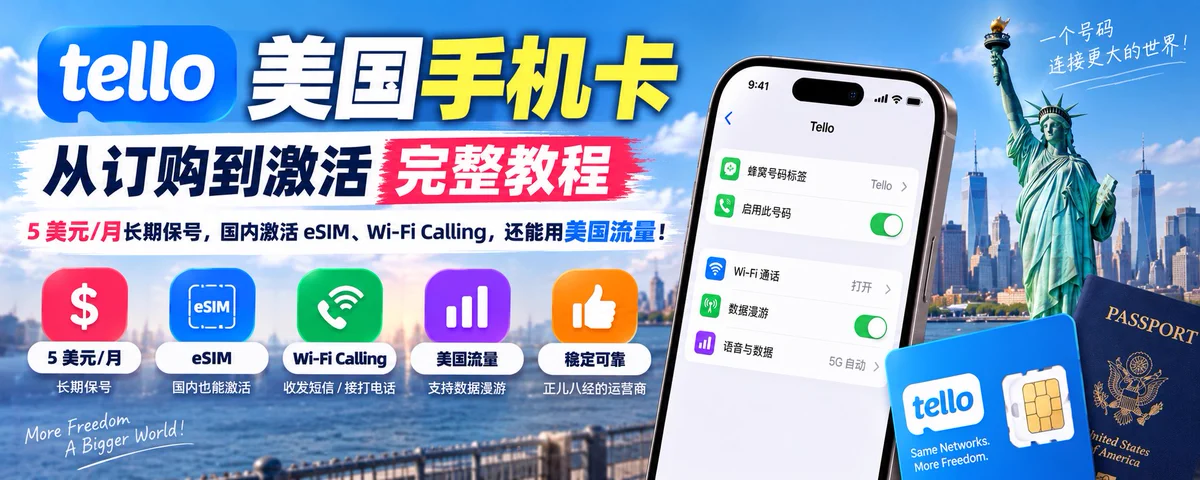
注意,这里必须要用美国手机号,其他的不行,我之前买的「Tello 美国手机卡」就马上派上用场了,经常玩海外业务,基建真的非常重要啊。
Tello 美国手机卡订购激活教程:
输入密码
然后设置密码:
截图中的要求是 8 到 20 个字符,并包含字母、数字、符号中的至少 2 种。
填写个人资料
这一步填写个人姓名和地址:
填写说明:
- Legal first name:填名字(拼音)
- Legal last name:填姓(拼音)
- Street address:填街道地址(英文)
- Apt., ste., bldg:填公寓、房间或楼栋信息(英文,没有就留空)
- City:填城市(英文)
- State:填州(英文)
- ZIP code:填邮编(数字)
以上可以使用美国地址生成器生成,Google 搜索一大把,建议选一个免税州(如:Alaska),核对无误并阅读协议后,点击「Agree and Create Account」继续。
选择用途
后面会出现用途选择页:
我主要用来购物付款,可以选择「Shop + earn rewards」。
绑定银行卡
进入「Link a card」绑卡页面:
填写卡号、卡类型、有效期、安全码和账单地址,再点击「Link Card」按钮,账单地址按发卡机构留存的信息填写。
必备的U卡推荐: https://xmgo.ai/picks/#ucard
如果暂时没有准备好,可以点击「Not now」,以后进入「Wallet」添加。
绑卡或者跳过绑卡后就注册成功了:
验证邮箱
点击右上角的「设置」图标,会弹出邮箱验证提示:
看到邮箱状态为「Unconfirmed」,点击「Confirm Your Email」,去注册邮箱按确认邮件的提示完成验证即可。
验证身份
点击首页右上角的铃铛,有一个未读消息。
它提示「Your account features are temporarily blocked」,也就是账户功能暂时受限。页面明确列出无法使用 PayPal 付款,并要求「Upload a photo ID」,上传带照片的身份证件。
我是使用「中国护照」验证的,这时候又体现基建的重要性了,可以不用出国,但这些东西一定要准备好。
验证通过后,所有受限功能就会立刻解除了。
安全设置
为了账号的安全性,再到设置里的「安全」页面开启双重验证,按页面提示完成设置。
苹果商店绑定 PayPal 付款
先确认你的 Apple 商店登录的是美区账号,非美国 Apple 账户不能绑定美区 PayPal。
账户可以正常付款后,再给美区 Apple 账户添加 PayPal:
以 iPhone 为例,打开 App Store,点击右上角的姓名,进入个人资料,先点击「付款方式」,再点击「添加付款方式」,然后选择 PayPal。
点击「登录 PayPal」,然后按页面提示完成账户验证并确认,返回后检查是否已经出现在付款方式列表中。
至此,美区 PayPal 的注册和绑定 App Store 就搞定了,搞一个美区 PayPal 是真香啊,美区订阅再也不用充值礼品卡了,礼品卡充值和退款、资金利用都非常不方便。
我最新的第四个 Claude 账号就是用美区 App Store + PayPal 支付的,目前使用一切正常,还没有封号。就算封号,也能退款到 PayPal,舒服了~
好了,本期就分享就到这里了,有帮助就关注一下哈,我会陆续分享硬核干货。
我是小码哥,下期见。
---
扩展阅读:
- SI 域名突然火了:美国官方力推 SI,马斯克也要改名 SpaceXAI!!(附保姆级注册教程)
- 别用机场了,DMIT 三网优化顶级线路太香了,晚高峰稳如老狗(附选购保姆级教程)
- WLOC 修改定位复活了:支持最新 iOS 27,无需 LocalDevVPN,全球任意位置一键定位
- 换掉 VPS 的垃圾 IDC 机房 IP:几十块一年,用上家庭宽带 IP 出口
- Muse AI 最新保姆级注册教程,免费拿到 VPS + 10 亿额度,亲测有效
- Grok Bot 又一个神级功能:虚拟机直接走你的本机网络出口,告别数据中心 IP 限制!
- 利用 Grok Bot 的 VPS 神机当网络出口教程:轻松解锁 Gemini,还告别 Cloudflare 反复验证
- 海外手机卡的尽头:Tello 美国手机卡从订购到激活完整教程,5 美元/月就能长期保号
- GiffGaff 携号转网 CTExcel 保姆级教程,成功经验无保留全分享
- CTExcel 激活保姆级教程,折腾了 3 天的成功经验,无保留全分享
更多干货请关注我,去文章页阅读。